Cordium documentation · Latest
Web Portal
The Cordium web portal is a browser-based console for creating, configuring and using Workspaces, Spaces and Templates without installing any software. It is available at https://cordium.<DOMAIN> and it is served as the Octelium WEB Service default.cordium. Everything you can do with the cordium CLI can also be done from the portal, from following a Workspace's initialization live to opening terminals, editing specs in a form or in YAML, managing the Members of a Space, and chatting with the Cordium Agent.
Signing In
Open https://cordium.<DOMAIN> in your browser. If you are not logged in yet, you are redirected to the Cluster's login page where you can authenticate via any of its identity providers (e.g. GitHub, Google, Okta, Entra ID or any OpenID Connect or SAML 2.0 provider) or via a passkey (read more here). Your User must be authorized to access the default.cordium Service by an Octelium Policy (read more here).
The dashboard shows your running Workspaces and the Spaces that you belong to:
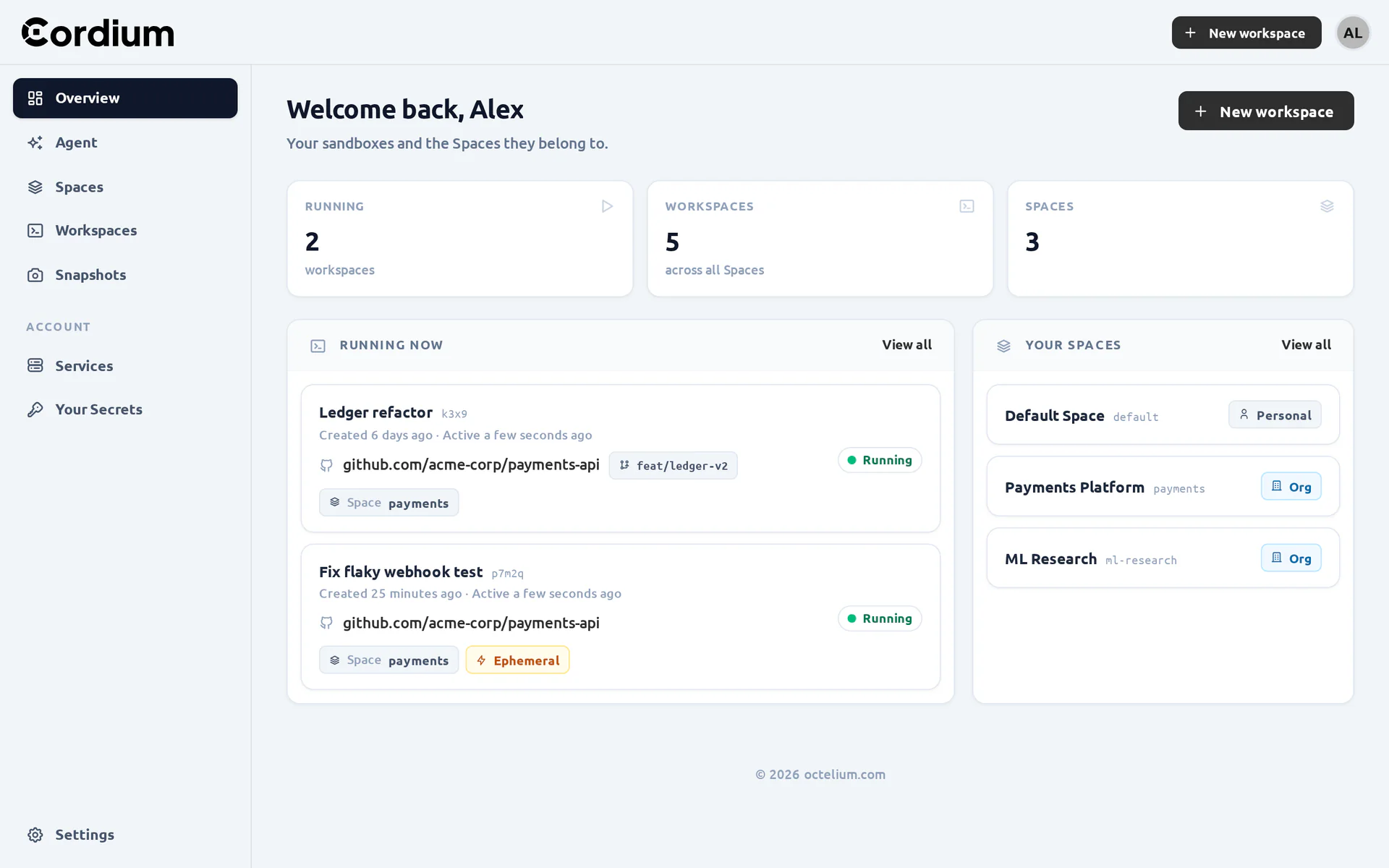
The sidebar gives you access to the Agent, your Spaces, all your Workspaces across Spaces, your Snapshots, the Octelium Services that you can access, Your Secrets (i.e. UserSecrets) and your Settings (i.e. your UserConfig).
Creating Workspaces

Click New workspace from anywhere in the portal, choose the Space, and optionally override the repository and the container image of the Space's default Template. You can also create Workspaces from a specific Template via the Launch a workspace section of the Template's page. Ephemeral storage creates an ephemeral Workspace whose storage is discarded on every stop, while Full configuration opens the complete spec editor (see below).
Once created, the Workspace's state progresses live as it is initialized (e.g. Start requested, Initializing, Pulling image, Preparing and finally Running), and its Logs tab streams the image pull, the repository clone and the output of the lifecycle tasks in real time:
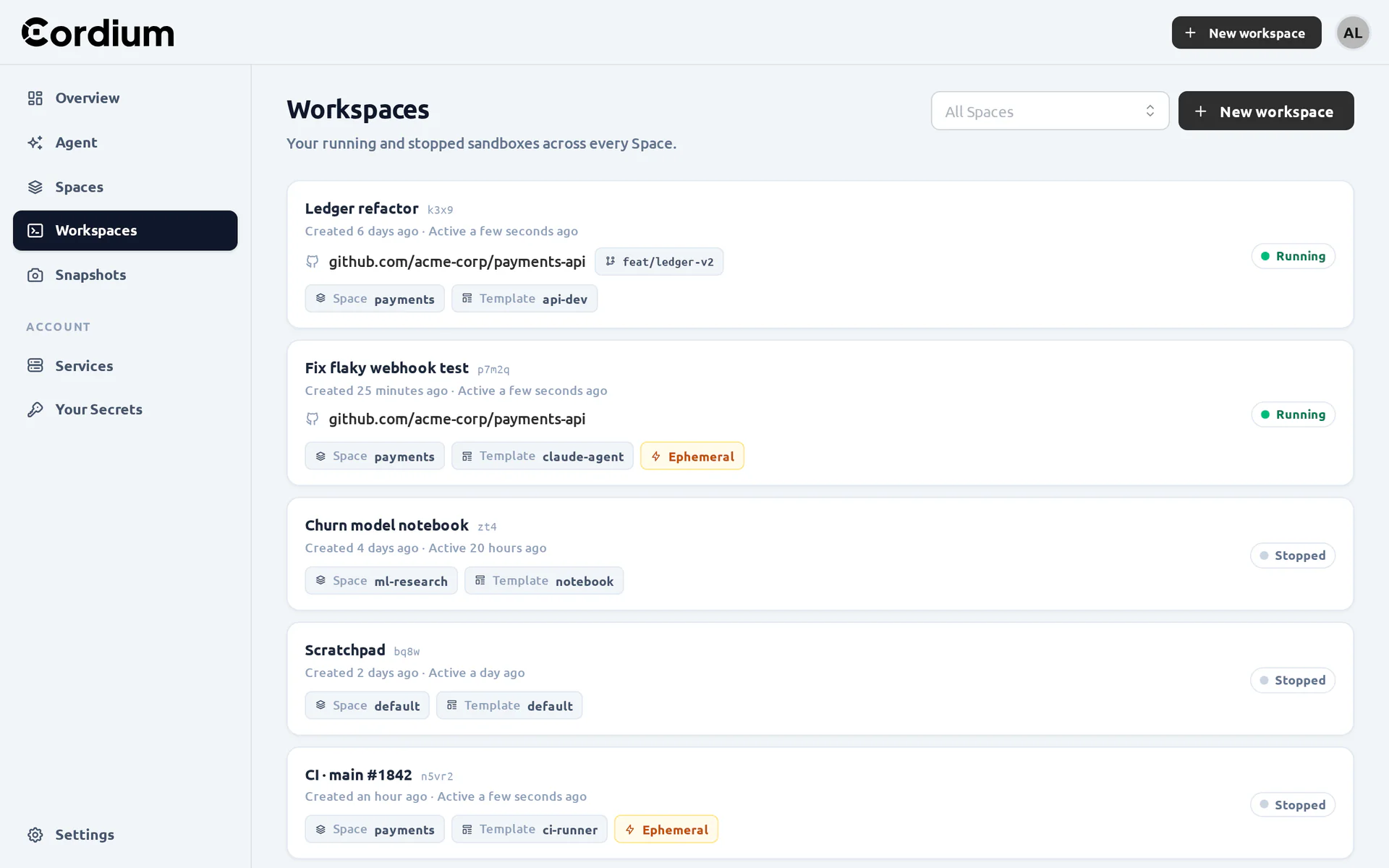
You can list all your Workspaces, filtered by Space, from the Workspaces page:
Using Workspaces
Every Workspace has its own page with the following tabs:
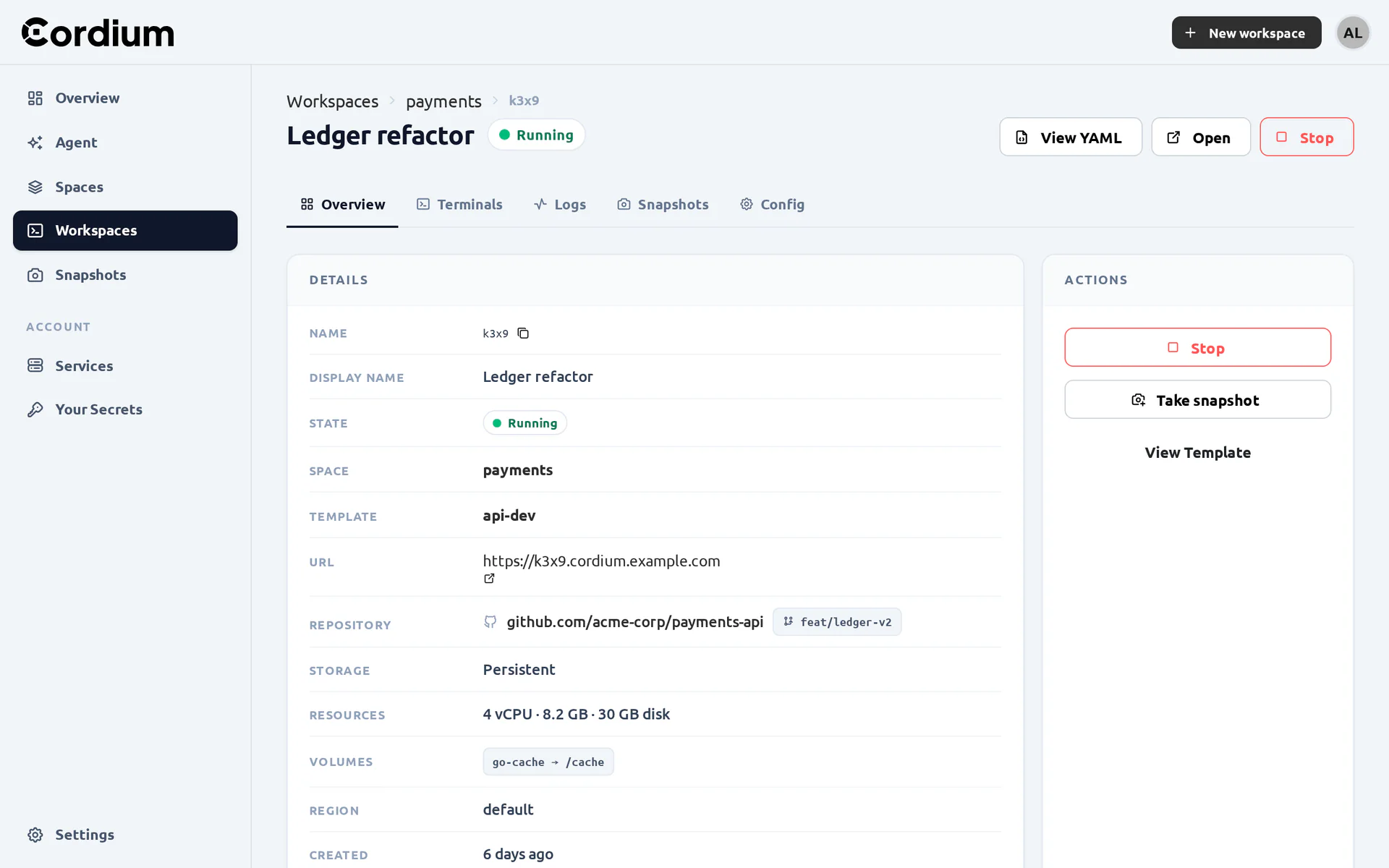
The details of the Workspace (e.g. its URL, repository, storage, effective resources, Volumes and Region) and its actions.

Browser terminals with multiple tabs. Octelium Services are reachable by name without any credentials.
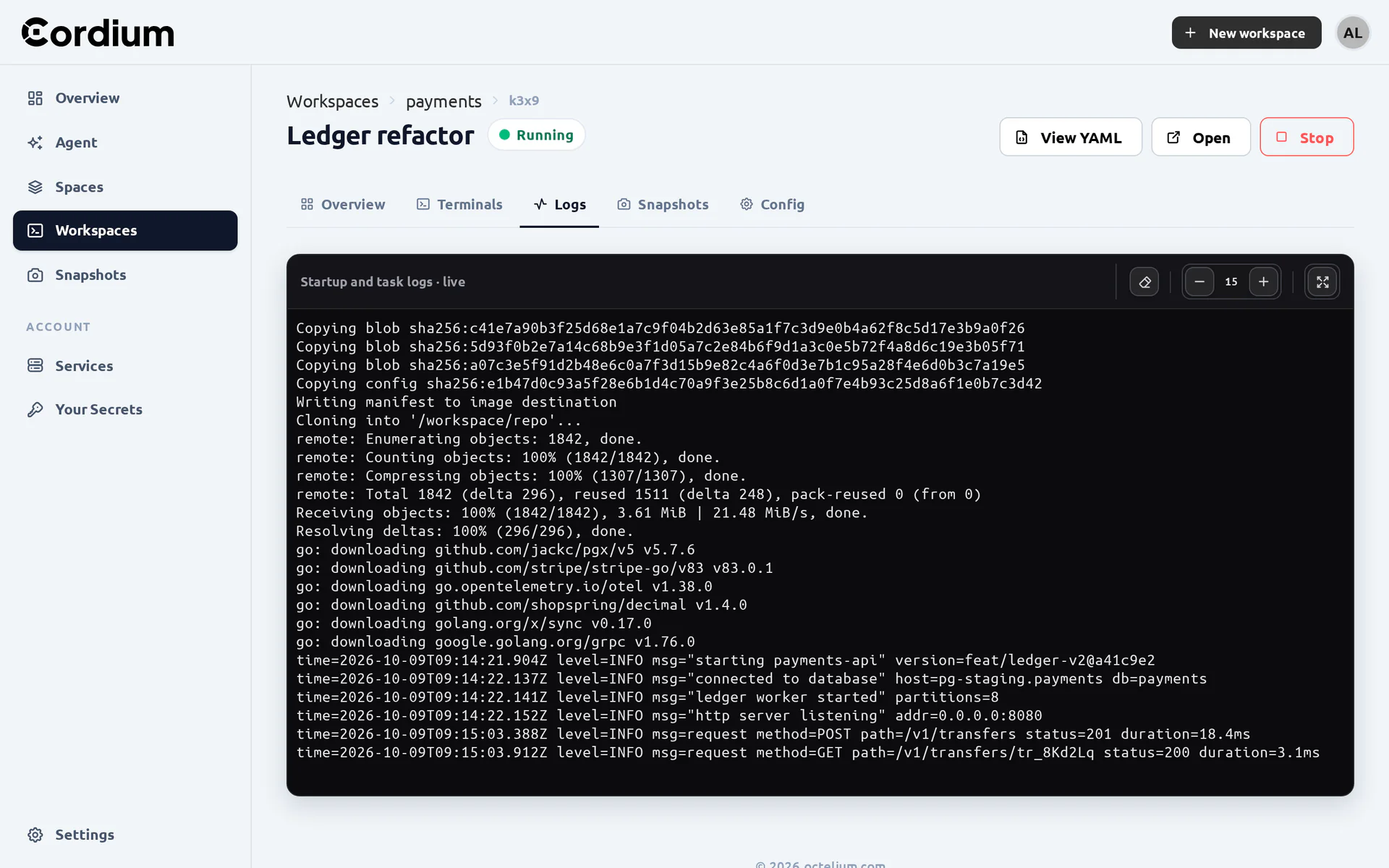
The image pull, repository clone and lifecycle task logs of the current run.
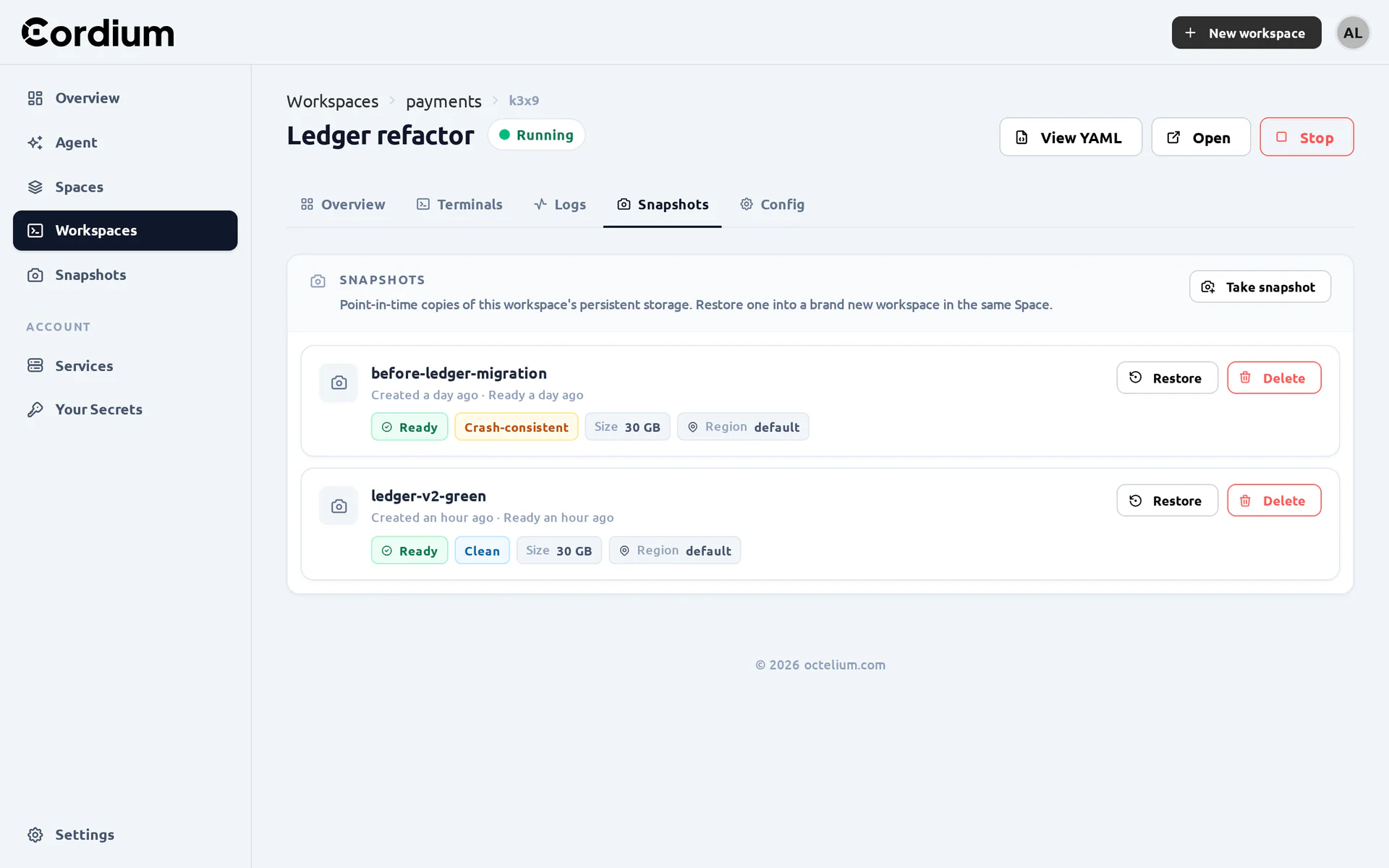
The WorkspaceSnapshots of the Workspace, which can be restored into new Workspaces.
The spec editor of the Workspace.
The page header shows the Workspace's state and lets you Start and Stop it, Open its default application in a new tab, and View YAML of the complete resource. The Actions panel lets you take a snapshot, jump to the Workspace's Template and, for stopped Workspaces whose Template uses a GitProvider, Sign in to Git provider (read more here).
Terminals
The Terminals tab opens fully interactive shells inside running Workspaces, as the Workspace user. You can open as many terminals as you want, each in its own tab, and adjust the font size or switch to full screen. Terminal input counts as activity for the inactivity timeout (read more here).
Applications
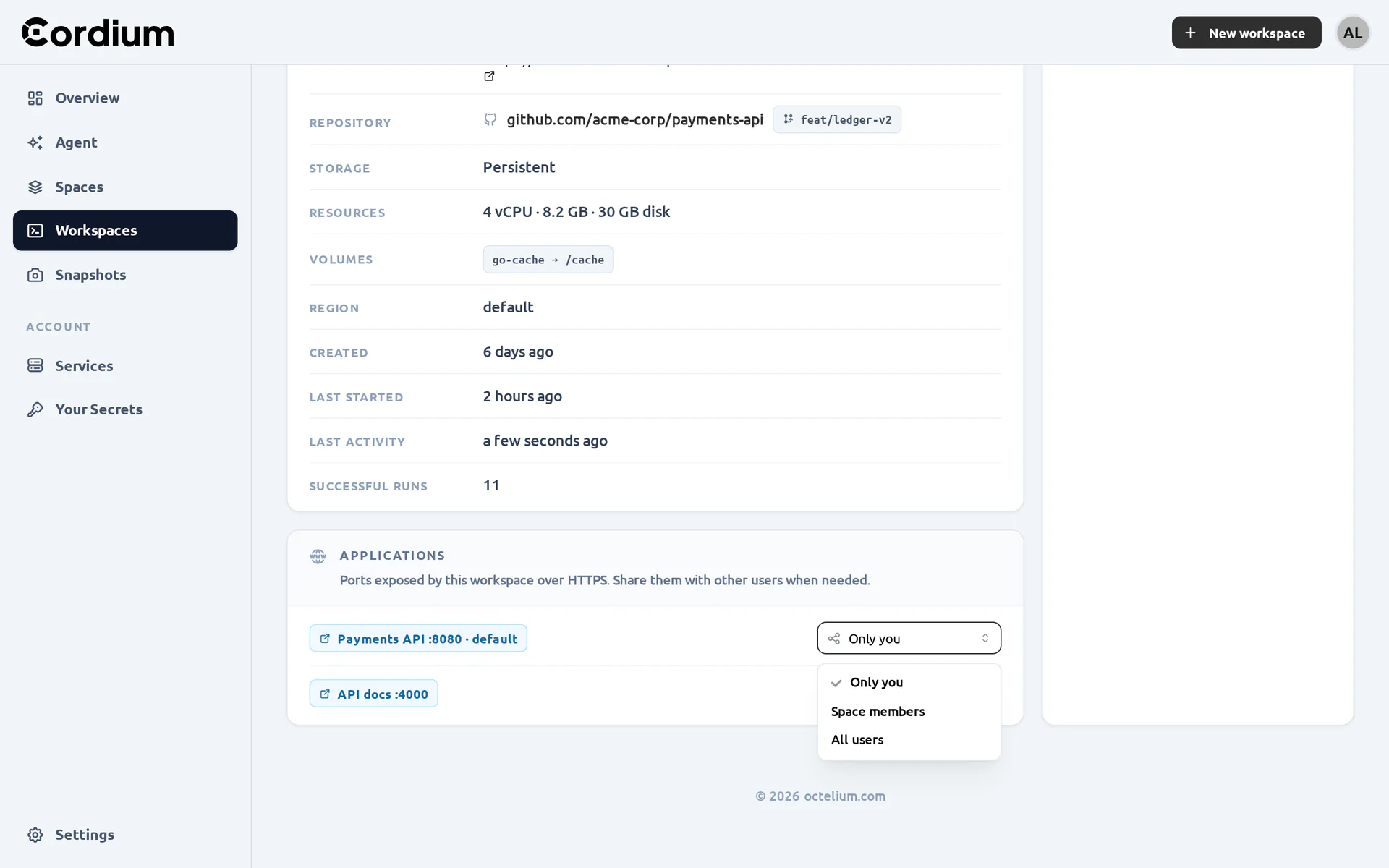
The Applications panel of the Overview tab lists the applications of a running Workspace and their HTTPS URLs. It also lets you share each application with the members of the Workspace's Space or with all the Users of the Cluster, and stop sharing it at any time (read more here):
Configuring Workspaces
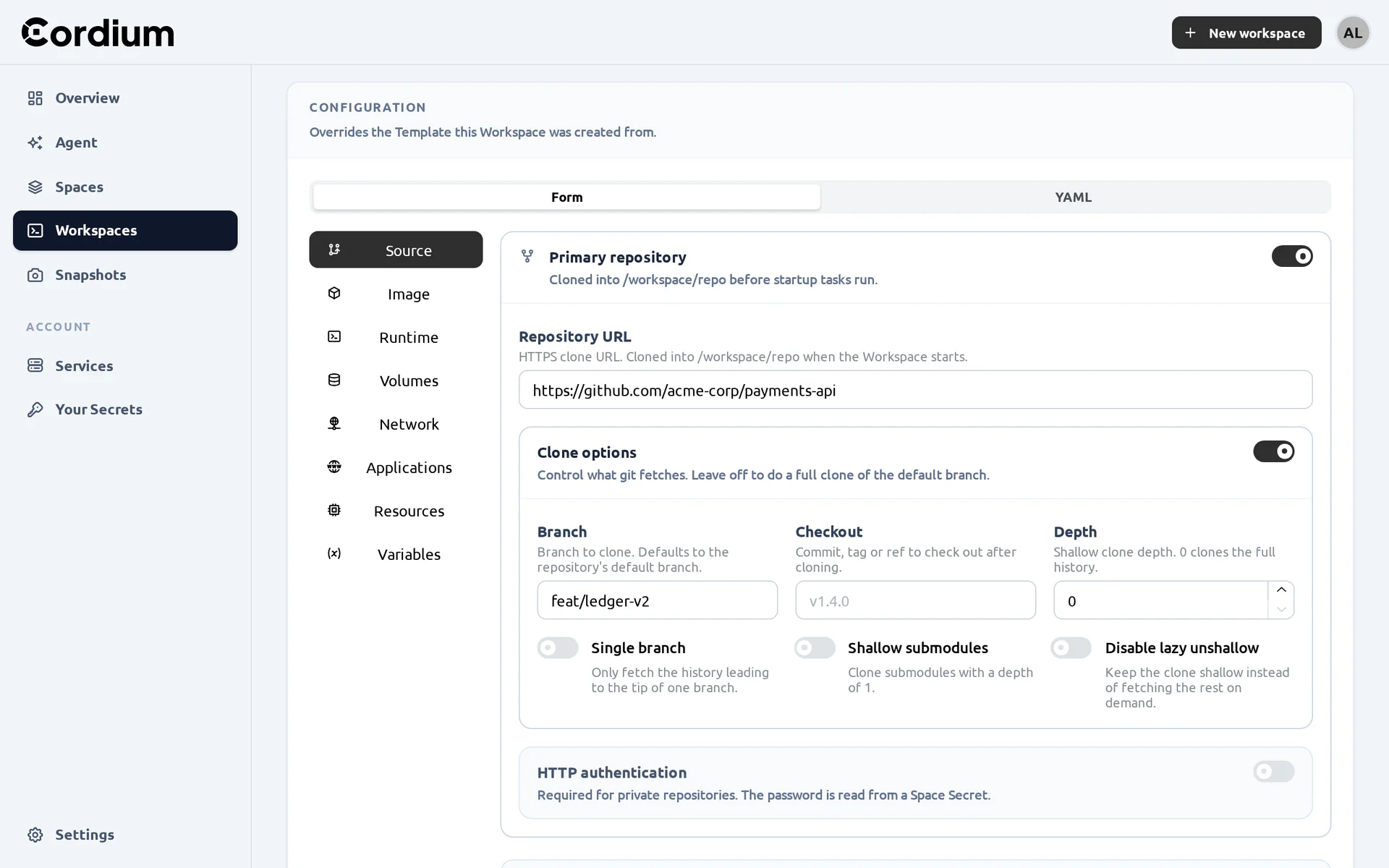
The Config tab lets you edit the display name, description and the complete spec of the Workspace, either via a form organized in sections (i.e. Source, Image, Runtime, Volumes, Network, Applications, Resources and Variables) or directly in YAML. The spec only contains what the Workspace overrides on top of its Template (read more about configuration levels here), and changes take effect the next time the Workspace starts.
The form editor, here with the primary repository and its clone options.
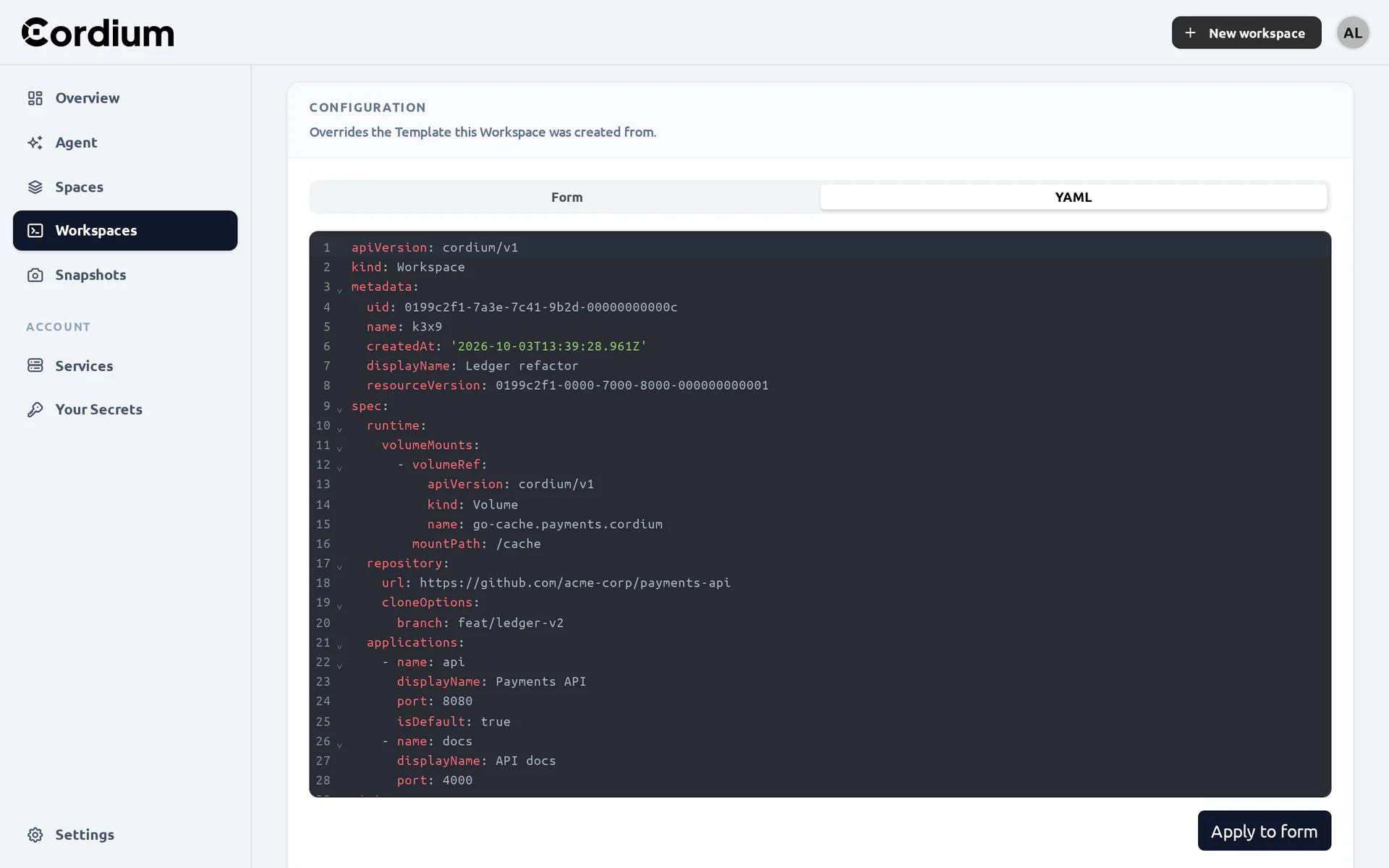
The YAML editor, which is equivalent to the files used by cordium run --file.
Spaces

The Spaces page lists your personal and organization Spaces. New Space creates a personal (USER) or an organization (ORGANIZATION) Space, provided that you are allowed to own Spaces (read more here):
Every Space has its own page with tabs for its Workspaces, Templates, Secrets, Volumes, GitProviders, Members and settings. Managing Templates, Secrets, Volumes, GitProviders and Members requires the ADMIN or OWNER role (read more here):
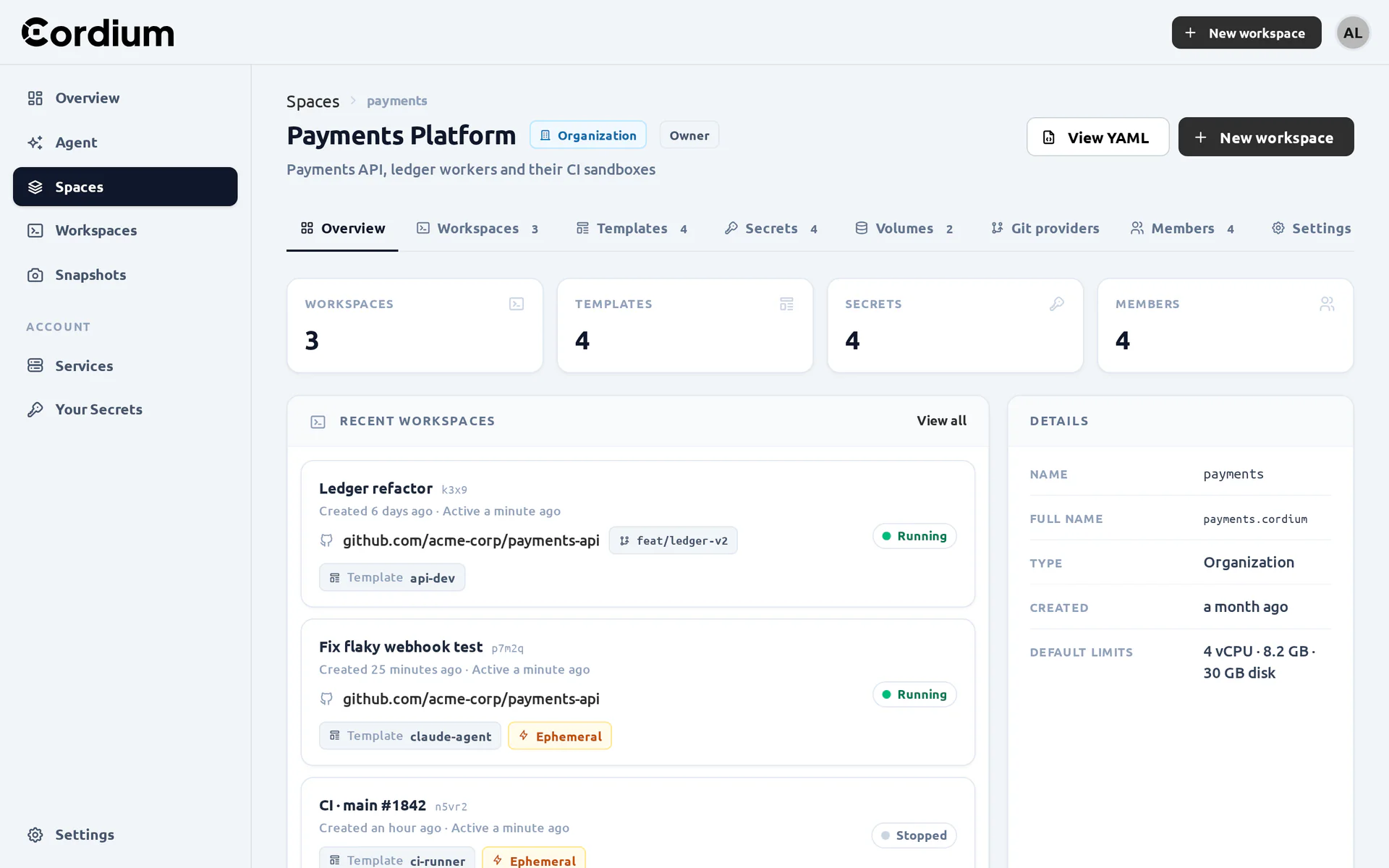
The Space's recent Workspaces, counters and default limits.
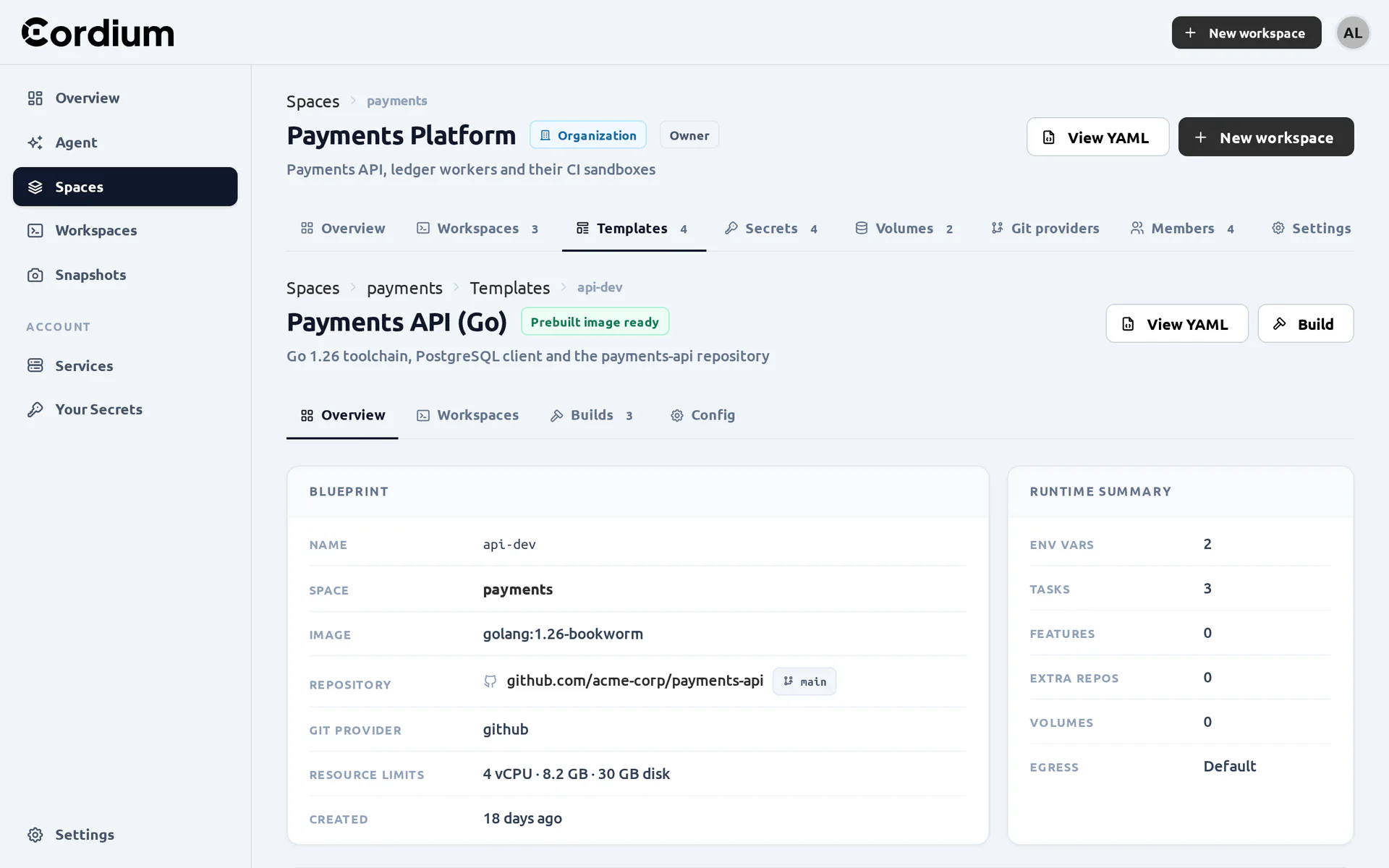
A Template with its blueprint, runtime summary and pre-build status.
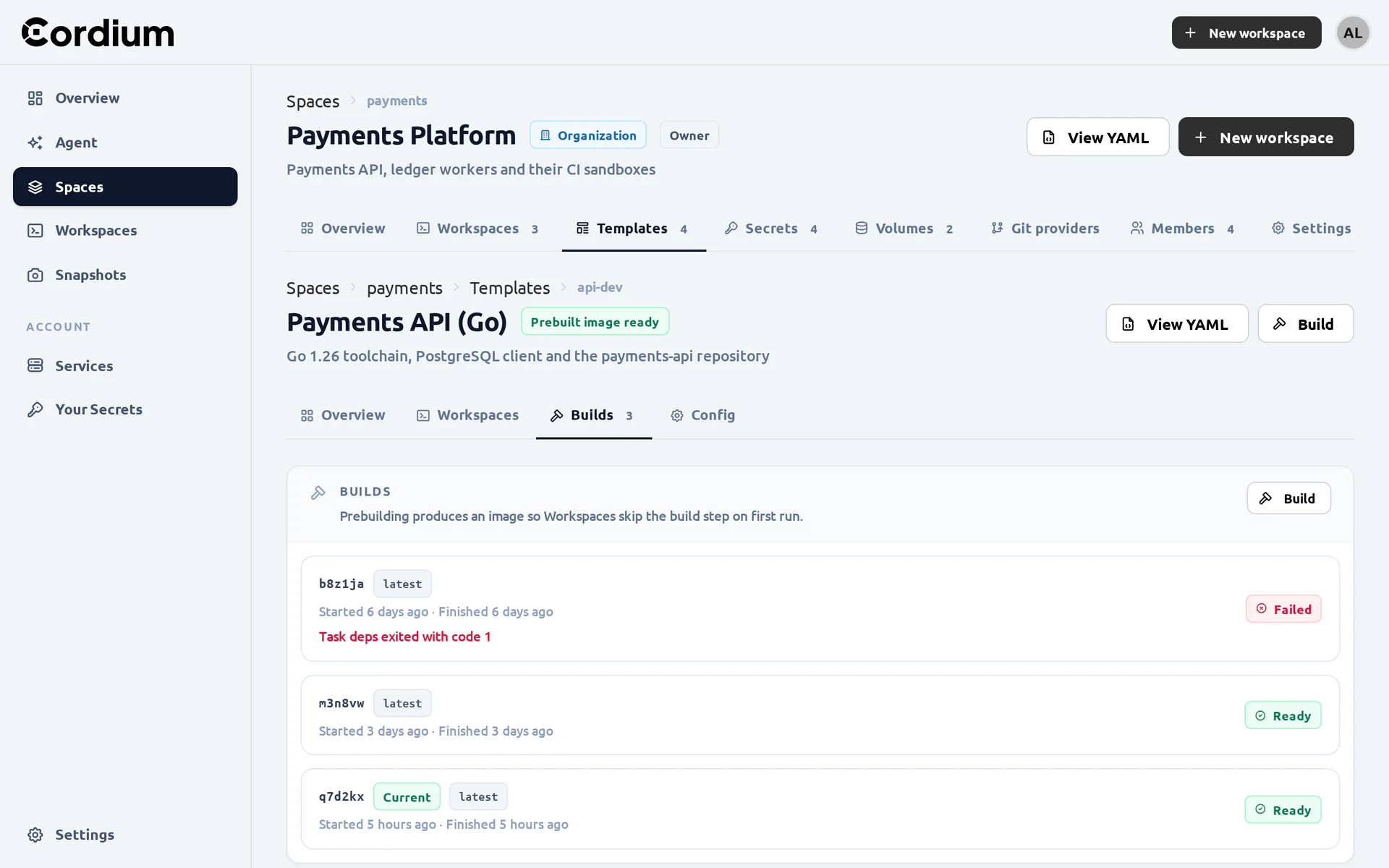
The pre-builds of a Template. Build triggers a new one.
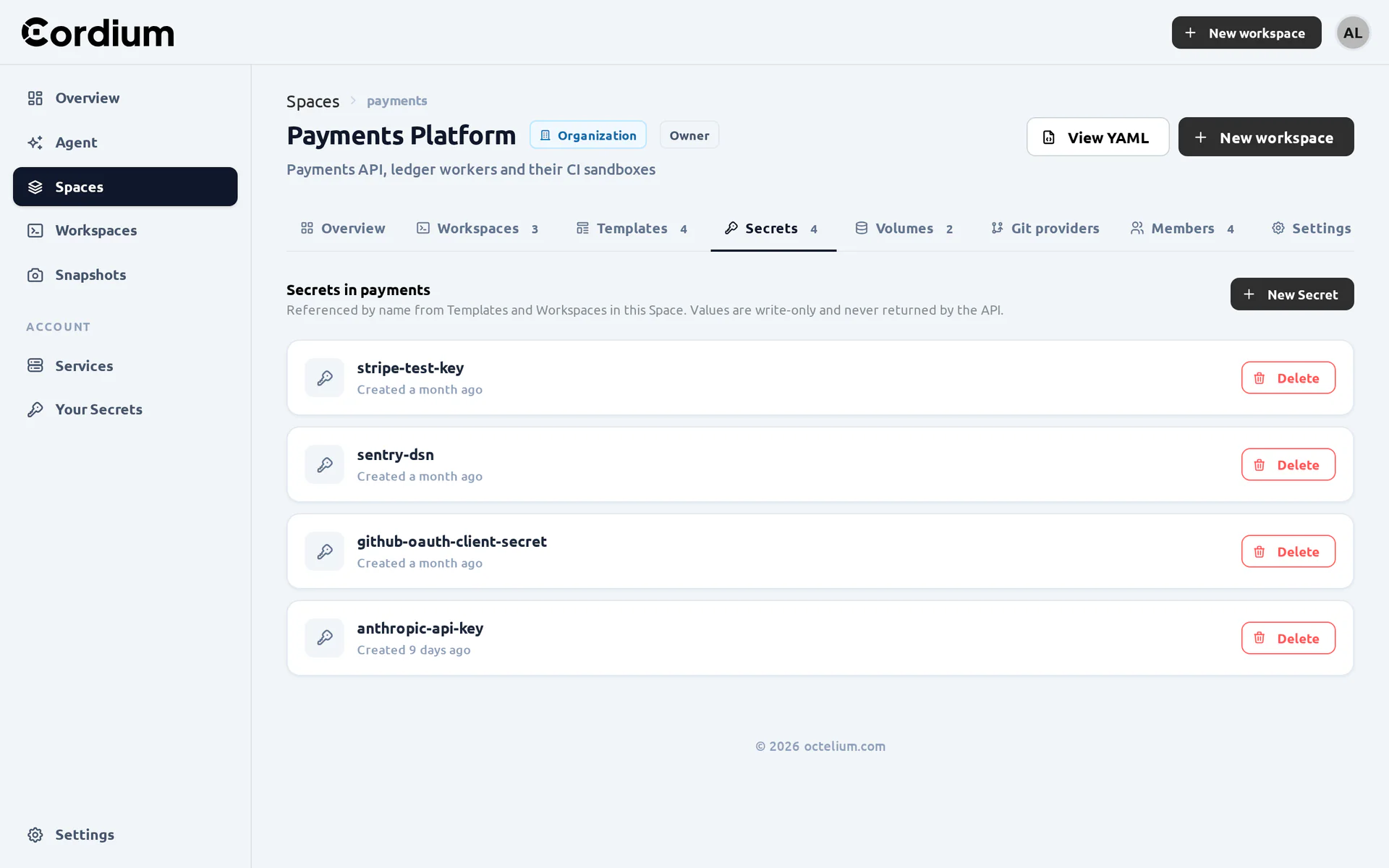
The write-only Secrets of the Space.
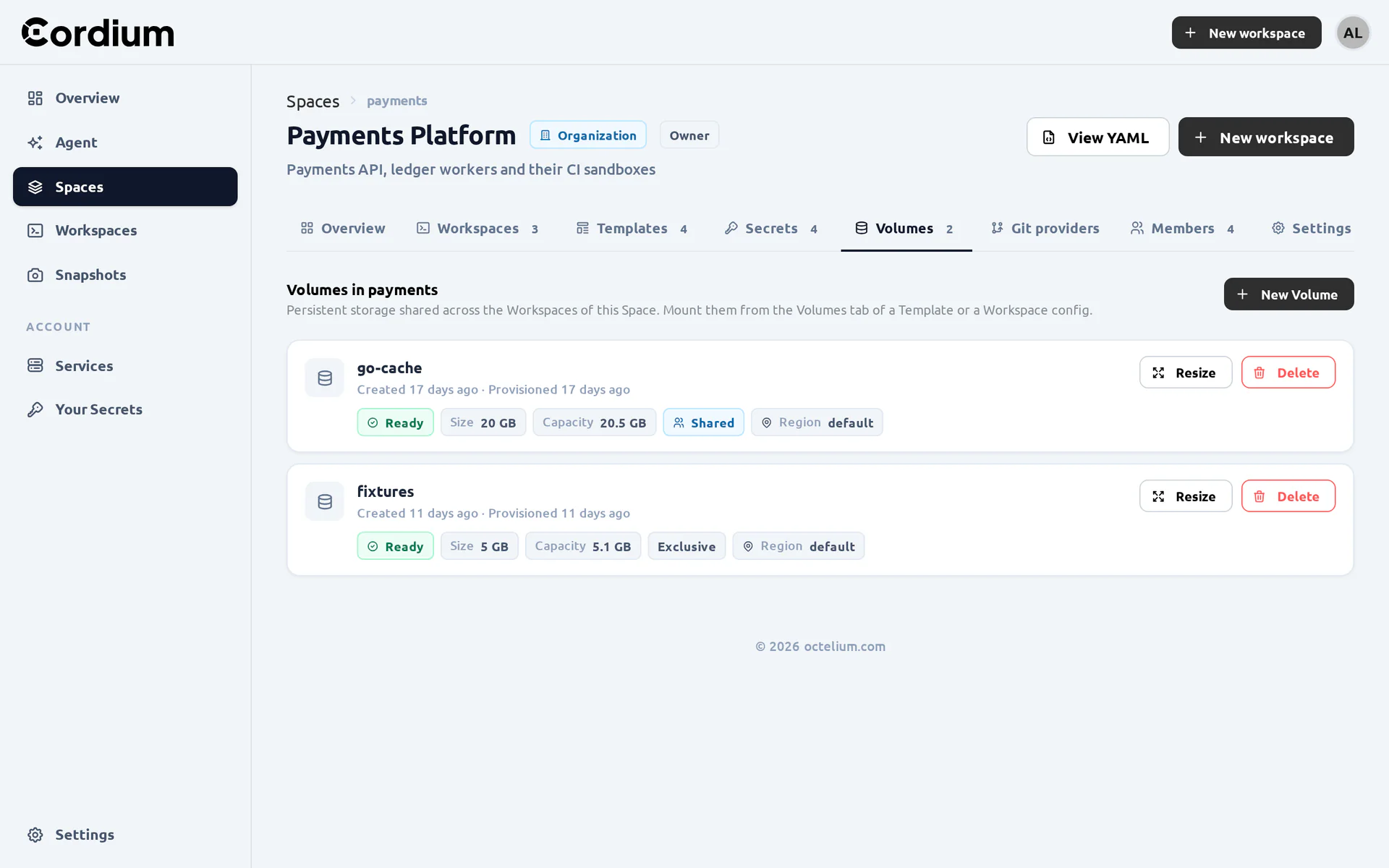
The Volumes of the Space, which can be resized and deleted.
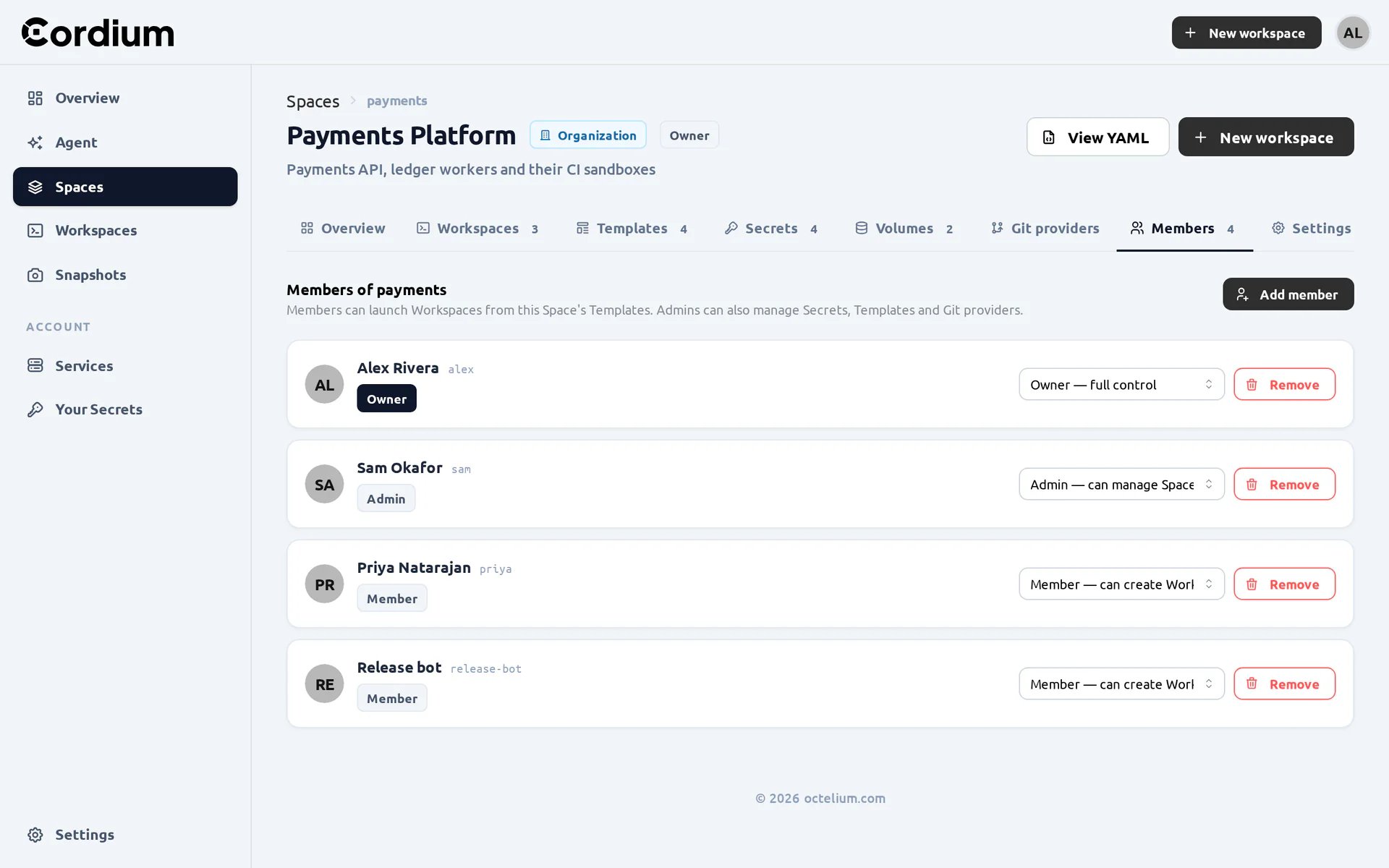
The Members of the Space and their roles.
Snapshots
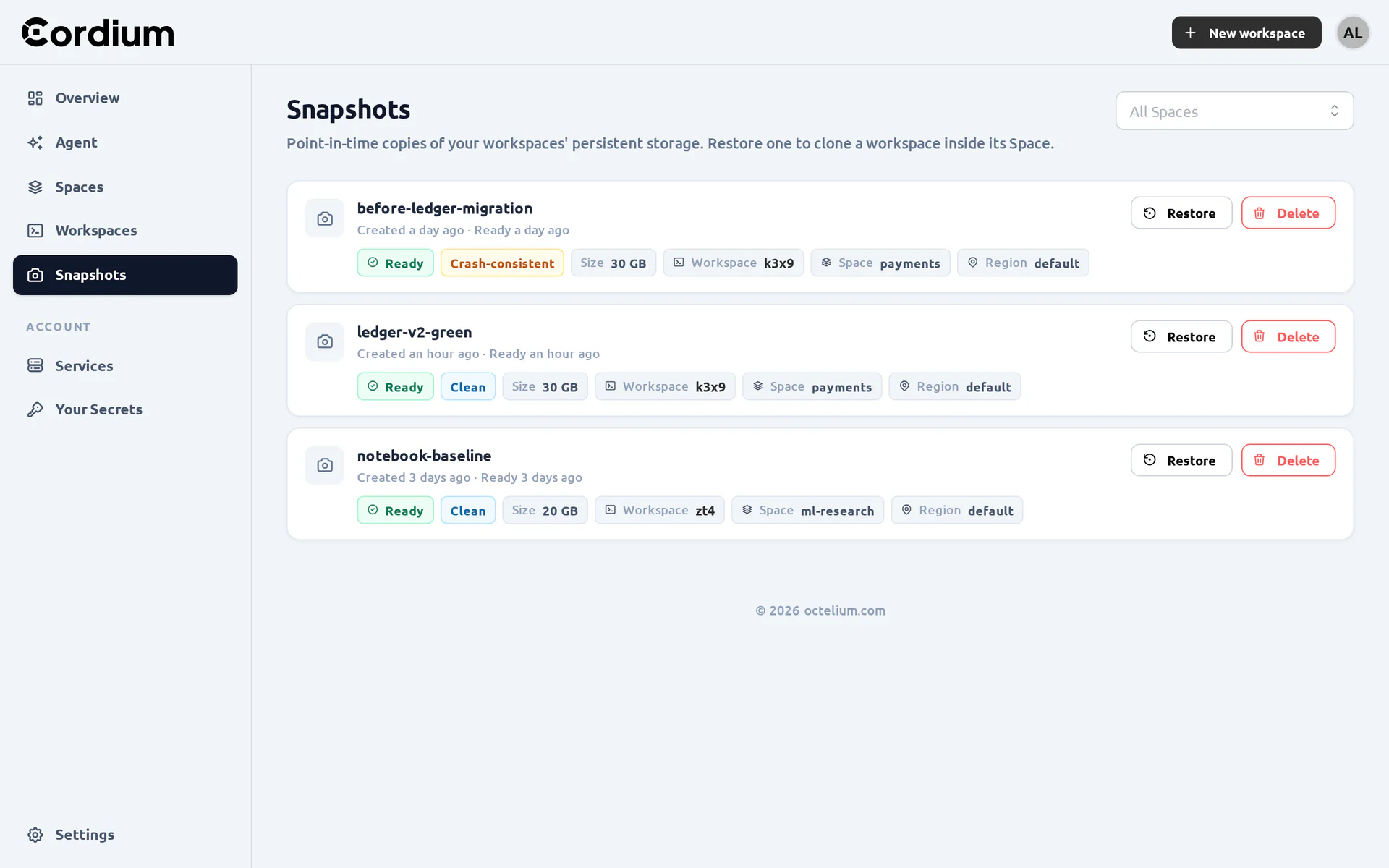
The Snapshots page lists all your WorkspaceSnapshots across Spaces with their state, consistency, size and source Workspace. Restore creates a new Workspace out of a snapshot (read more here):
Your Secrets

The Your Secrets page manages your personal UserSecrets. New Secret creates a secret from a value, a multi-line value or a file, or asks the Cluster to generate an SSH key pair whose public key you can register at your git hosting service (read more here):
Settings
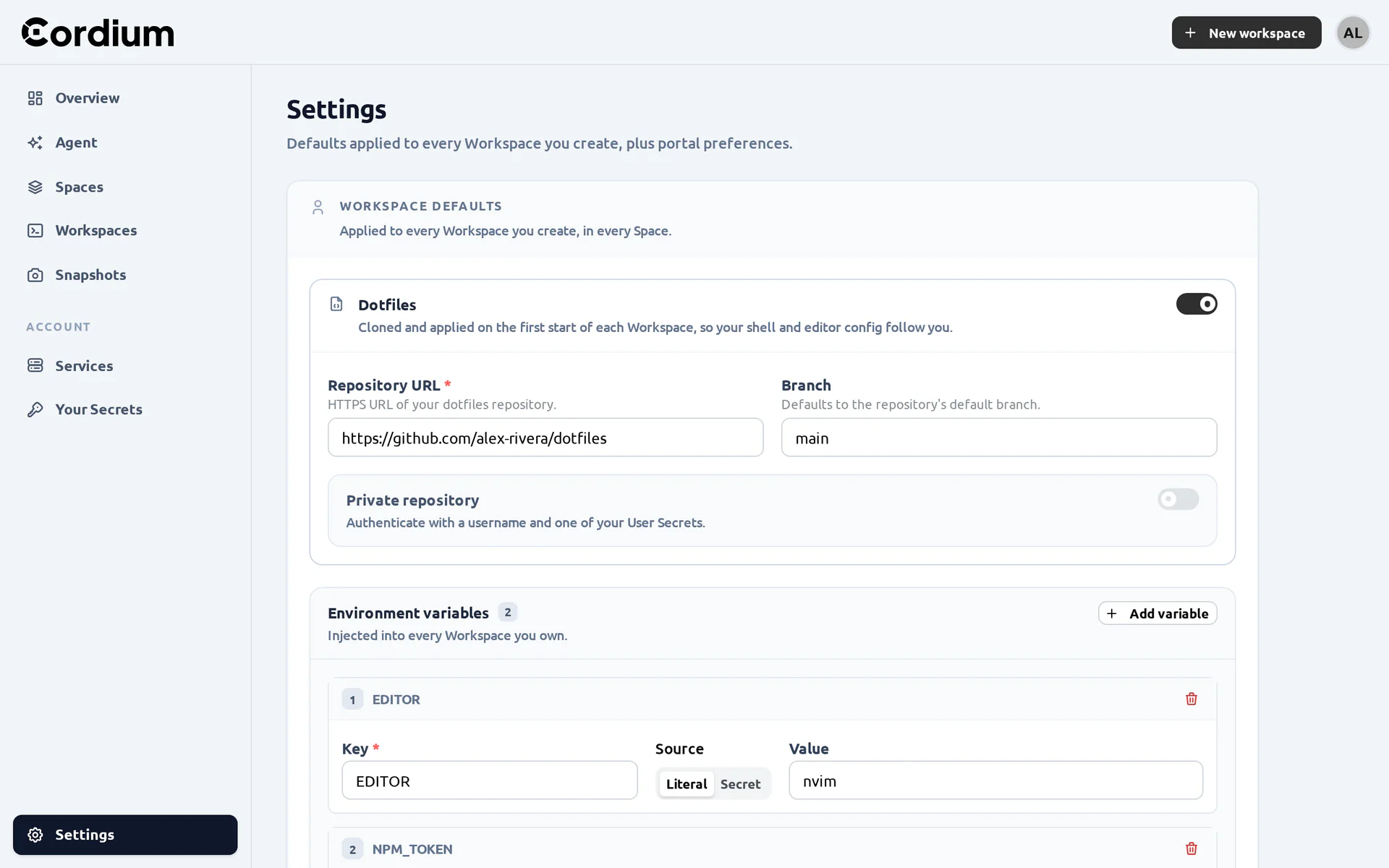
The Settings page edits your UserConfig, i.e. your dotfiles repository, the environment variables and lifecycle tasks that apply to all your Workspaces, and your preferred Region when the Cluster has several Regions (read more here). It also holds your portal preferences:
Services
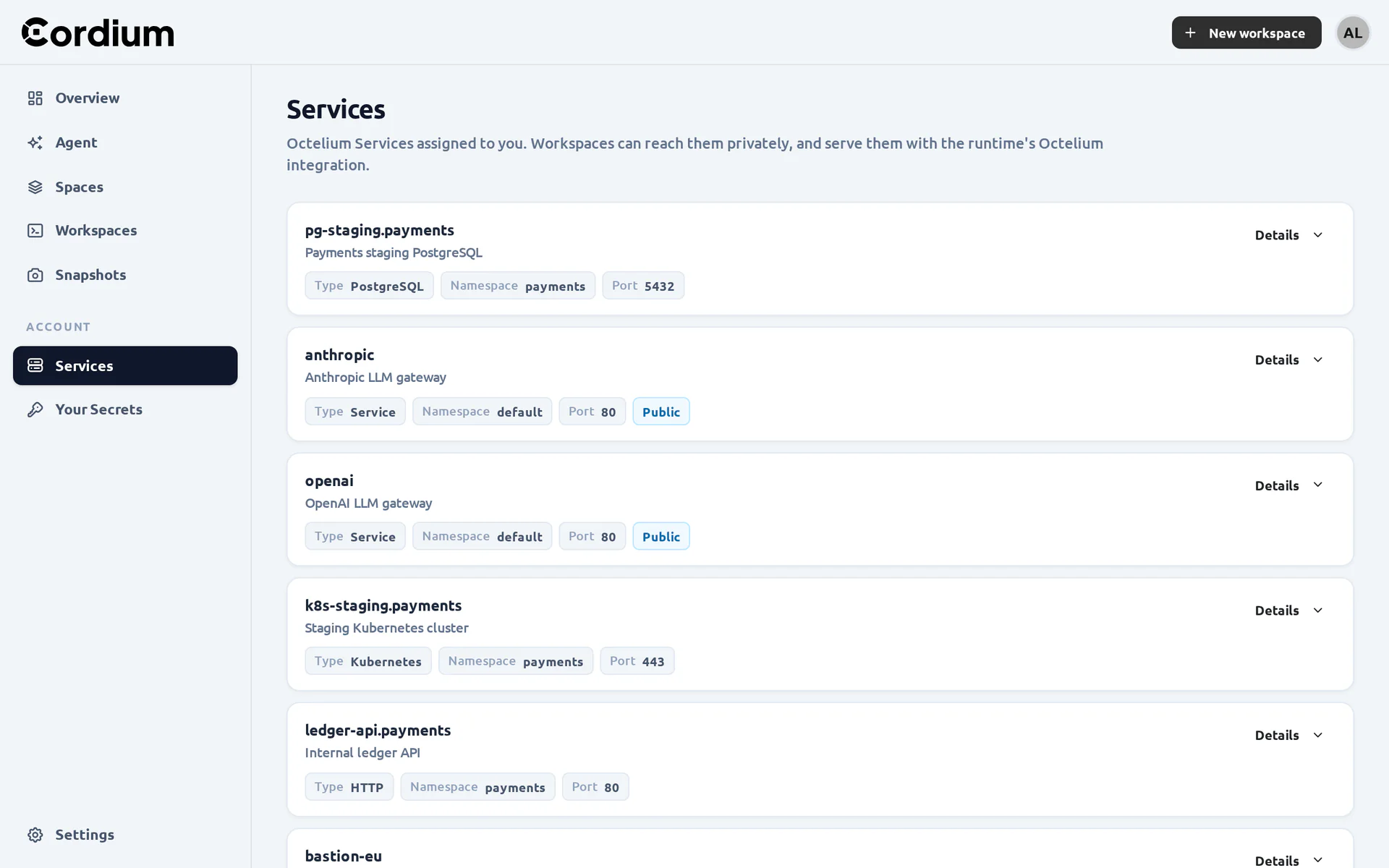
The Services page lists the Octelium Services that you are authorized to access, i.e. the Services that your Workspaces can reach by name via secretless access, along with their mode, Namespace and port (read more here):