Octelium documentation · Latest
Identity Providers
An IdentityProvider represents an identity provider (IdP) that is used by the Cluster to authenticate and re-authenticate the Users in order for them to obtain and keep a valid Session and consequently be able to interact with the Cluster and access its Services (read more about Sessions here). As will be discussed in detail below, an IdentityProvider has one of the following types: github, oidc, saml and oidcIdentityToken.
Listing IdentityProviders
You can list the Cluster's IdentityProviders (read more about listing resources here) as follows:
You can also delete a specific IdentityProvider by its name via octeliumctl delete idp command as follows:
Web Identity Providers
Whenever you create an OAuth2/OIDC/SAML 2.0 application from within your identity provider's dashboard, you need to set the redirection URL to https://<DOMAIN>/callback in your application settings in order for the identity provider to know where to redirect the authentication flow back to Portal.
GitHub OAuth2
The GitHub IdentityProvider can be defined as in the following example:
As you can see, the client secret is referenced by a Secret resource via the
field fromSecret in very similar way to how secrets are referenced in
Kubernetes for example. That means you have to first create a Secret via the
command octeliumctl create secret and then reference it by its name in your
IdentityProvider. You can read more about Secrets here.
To get the IdentityProvider client ID and secret, you will have to create an OAuth application as follows:
Go to
Developer Settingshere.Add a new OAuth app and fill the following required fields as follows:
Set the
Homepage URLfield tohttps://<DOMAIN>Authorization callback URLfield tohttps://<DOMAIN>/callback
Now you obtain the OAuth client credentials and you set the client secret as an Octelium Secret as follows:
And now you can actually create your IdentityProvider as follows:
And apply the creation with an octeliumctl apply command (read more here).
Note that while Octelium requests the email and user OAuth scopes from GitHub, GitHub might not always reveal the user email if the user keeps their primary email as private in their GitHub user settings. Therefore, using email as an identifier for GitHub depends on whether the user keeps their primary email private regardless of the granted OAuth scopes. You can use, however, the GitHub usernames as an identifier of a certain IdentityProvider for such users in the User's list of identities (read more here). Here is an example:
OpenID Connect
OpenID Connect is an identity layer built on top of the OAuth 2.0 protocol and is currently usually preferred over SAML in most cases. Octelium can use an OIDC client to authenticate the User from an OIDC IdentityProvider. Here is an example:
As mentioned in the example above, the value of the issuerURL is when appended by /.well-known/openid-configuration shows you the OIDC discovery endpoint, or simply the OIDC provider configuration document. In some OIDC providers such as Auth0, such value needs to be appended with a final trailing slash since the issuer field in the endpoint document must match the issuerURL.
Gitlab Example
You can use Gitlab cloud as an OpenID Connect IdentityProvider as follows:
Go to
ApplicationsinSettingshere to add a new application.Set the
Redirect URIfield tohttps://<DOMAIN>/callback.Enable
openid,emailandprofilein the scopes.Now you create an Octelium Secret from the obtained Gitlab app secret as follows:
And then set the value when asked.
Now you can actually create the Gitlab IdentityProvider as follows:
And apply the creation with an octeliumctl apply command (read more here).
For more information regarding using Gitlab as an OpenID Connect identity provider, you can read Gitlab's own docs here
SAML 2.0
You can define a SAML 2.0 IdentityProvider as in the following example:
You can also use the metadata content directly instead of using a metadata URL as follow:
By default, the SAML 2.0 provider always checks for the user's identifier, typical the email, using the identifierAttribute which is set by default to http://schemas.xmlsoap.org/ws/2005/05/identity/claims/emailaddress. However, you can always override that value by setting identifierAttribute.
User Email as an Identifier
By default, an authentication by a web IdP IdentityProvider (ie. GitHub OAuth2, OpenID Connect or SAML 2.0 IdentityProvider) at first tries to find the User via an explicitly set identity (read more here) with an identityProvider field that matches the IdP IdentityProvider's name and identifier that matches the identifier in the assertion returned by the provider.
If no explicit identity matches or if the list of identities is simply empty, then the email field of the User (read more here) is then inspected against the identifier in the assertion returned to the Cluster by the identity provider. In other words, the email field acts as a default identifier that can be used automatically for any IdP IdentityProvider to find a User. However, you can disable this default behavior in a certain IdentityProvider, for example, when you do not trust that the email has been verified by that identity provider, as follows:
Public Display Name
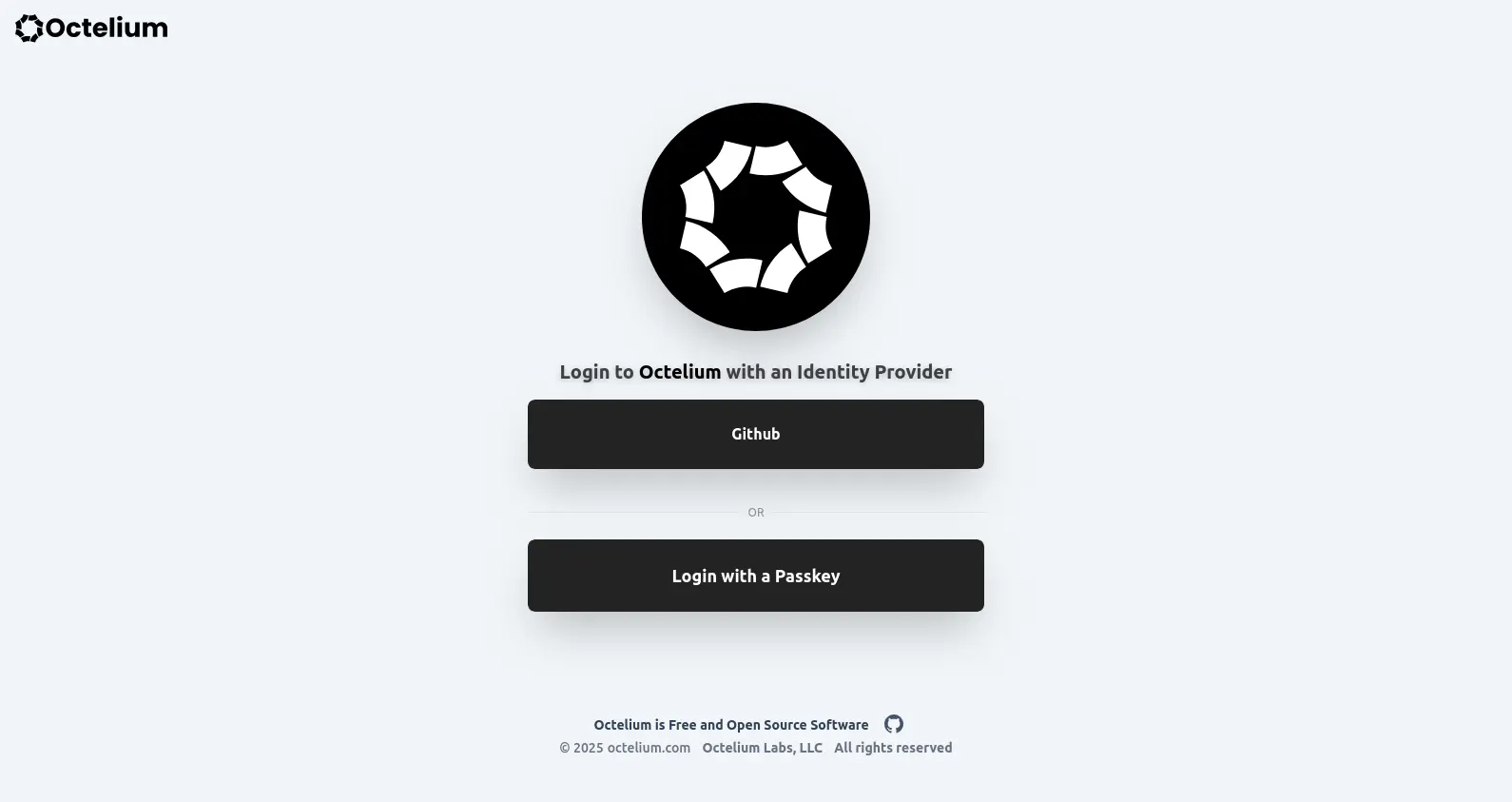
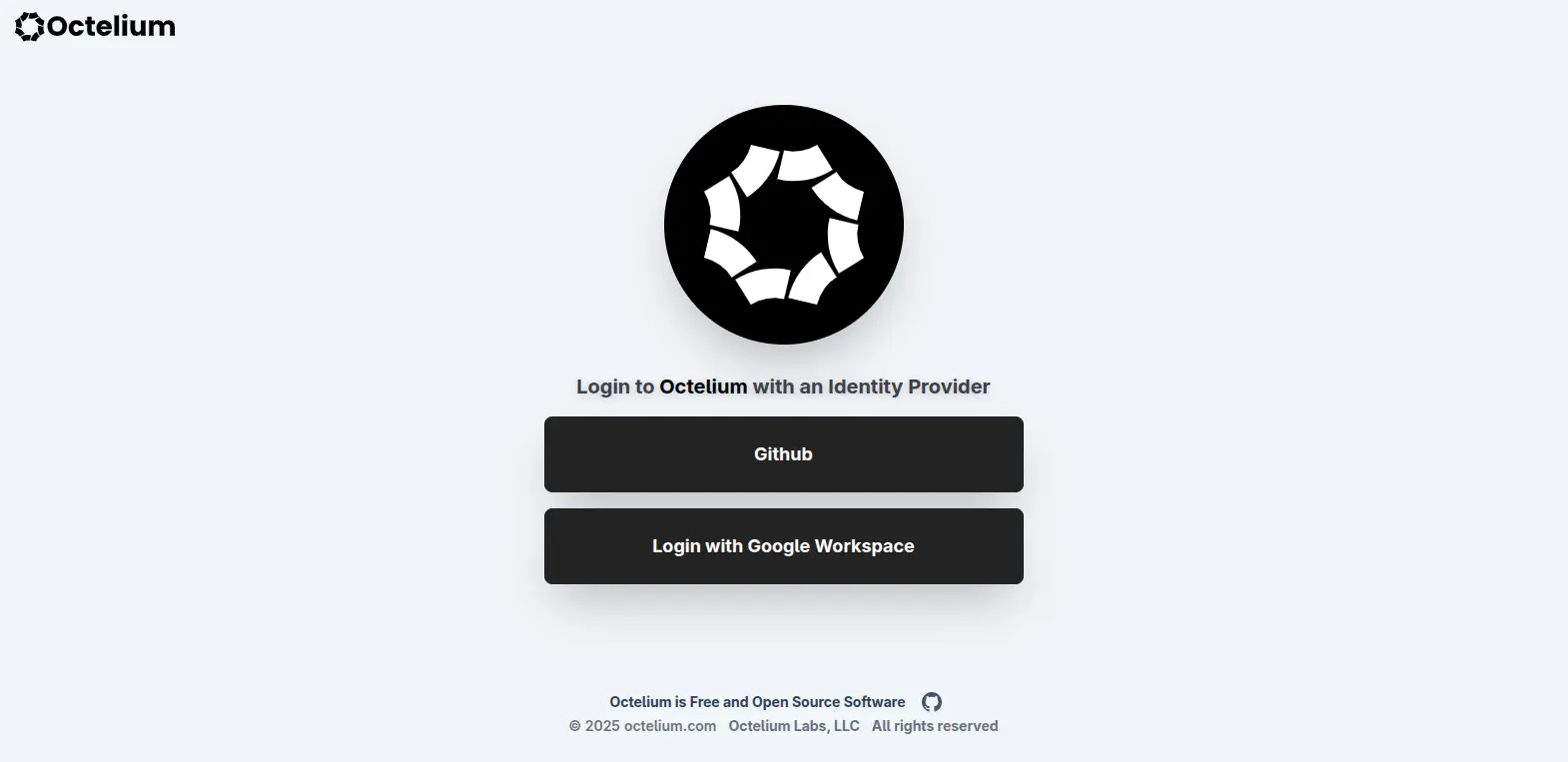
You can set the public display name that shows up on the button of the corresponding IdentityProvider when Users visit the login page. If not set, the resource metadata's display name will be used as a fallback. Here is an example:
Workload Identity Providers
OIDC Assertion
Octelium currently also supports authentication for WORKLOAD Users using OpenID Connect (OIDC) assertions where workloads can authenticate themselves to the Cluster using OIDC ID tokens issued by the identity provider hosting the workload instead of typically having to use authentication token Credentials. The main disadvantage of using authentication tokens is that they need to be issued by the Cluster and have to be stored securely at the User's side. This can be cumbersome at scale and may lead to a breach if a Credential leaks. This "secretless" assertion-based authentication method is increasingly getting more popular recently for workloads running on major cloud providers such as Azure, CI/CD providers such as GitHub Actions and CircleCI and it can also work for Kubernetes clusters. There are 3 modes to define the OIDC assertion IdentityProvider:
Public OIDC Issuer
This mode is preferable when the OIDC issuer publicly publishes its endpoint. Many cloud providers, CI/CD providers and managed Kubernetes clusters already offer their OIDC endpoint publicly.
JWKS URL
In some cases, you might want to set the JWKS url directly if you are not dealing with a fully compliant OIDC provider. In such case, you also have to explicitly set the issuer in order to be verified against the issuer claim in the OIDC ID token assertion.
JWKS Content
This mode can be useful for cases where the OIDC issuer is not publishing its endpoint publicly (e.g. Kubernetes clusters that do not publish their endpoints publicly). In this case you can just manually set the JWKS content manually. In such case, you also have to explicitly set the issuer in order to be verified against the issuer claim in the OIDC ID token assertion.
Authenticator Assurance Level
One of the important goals of the zero trust model is to control access based on the User's identity whose degree of confidence and assurance depends on the strength of authentication methods used by SSO identity providers. For example, an IdP might only require a password, another might require MFA second-factor authentication method such as TOTP, and a third forces the User to authenticate with a hardware-based phishing resistant authenticators such as FIDO-2 security keys (e.g. Yubikey) that is capable of enforcing user consent and verification methods during authentication such as biometric (e.g. fingerprint) or PIN in order for the authenticator to proceed with the authentication process. NIST defines a technical guide of 3 authenticator assurance levels (AAL) of increasing strength AAL1, AAL2 and AAL3 here where level-3 corresponds to the highest level of assurance. Octelium enables you to control such AAL level during authentication depending on the content of the assertion (e.g. ID token in the case of OpenID Connect IdentityProviders) returned by the IdP to the Cluster, and use the resulting AAL in your access control decisions (read more about access control and Policies here). For example, you might want to be sure that all or certain Users can access all Services or certain sensitive Services only if they authenticated via a phishing resistant hardware-based authenticator that satisfies AAL3 requirements. Here is an example:
To actually set the AAL value based on the assertion content upon authentication, Octelium enables you to define your own policy-as-code AAL rules, represented by the aalRules list as shown below, where the value chosen corresponds to the first rule whose condition matches. This is similar to dynamic configuration rules (read more here). Octelium converts the assertion into a map in the case of oidc, oidcIdentityToken and github IdentityProviders where you can define your conditions in the assertionMap object. Here is an example:
For the case of OpenID Connect, some IdPs use standard claims such as amr and acr to provide AAL information, others do use custom claims.
For the case of saml IdentityProviders, the assertion is available as a string value in the assertion field. Here is an example:
Disabling an IdentityProvider
You can disable/deactivate a IdentityProvider and immediately disable the Users ability to see that IdentityProvider in the log in page or log in with it. Here is an example:
Post-Authentication Rules
By default, a successful authentication/re-authentication by an IdentityProvider automatically creates/extends the validity of the Session. Post-authentication rules, however, provide you a way to control that behavior, enabling you to reject even a successful authentication via policy-as-code rules. This can be useful, for example, to prevent certain Users, or certain groups of Users, from logging in during certain times or under certain contexts, or logging in via certain IdentityProviders, or logging in without using strong, hardware-based MFAs such as security keys. Here is an example that only allows Users whose email domain is example.com who log in with an AAL of AAL3 to be able to use that particular IdentityProvider, otherwise do not accept the log-in:
Authenticators and MFA
In addition to using the MFA provided by the IdentityProvider and setting the Authenticator Assurance Level and using it in your access control decisions, Octelium also provides its own Authenticators, including FIDO and TOTP, that can be used for MFA and passwordless login via Passkeys. You can read in detail about Authenticators here.
Passkey Login
You can enable Passkey passwordless login as shown in detail here.