
Authentication and Logging in
The octelium and octeliumctl CLIs currently provide multiple ways for Users to authenticate themselves and obtain a valid Session, which is required to interact with the Cluster and access its Services.
Initial authentication can be achieved through one of the following methods:
Web identity providers (IdPs) such as any OpenID Connect or SAML 2.0 providers (e.g. Okta, Azure AD, etc...). This is available for
HUMANUsers as shown below.Authentication tokens which can be used mainly by
WORKLOADUsers but can also be used byHUMANUsers.Assertion tokens (e.g. OIDC-based assertions) which are used by
WORKLOADUsers.
Users can also re-authenticate their already existent Session via Authenticators and Device authentication to extend the validity of their Sessions.
Web Identity Providers
HUMAN Users can easily login to a Cluster via the command:
Read more about the OCTELIUM_DOMAIN environment variable and the --domain
flag here
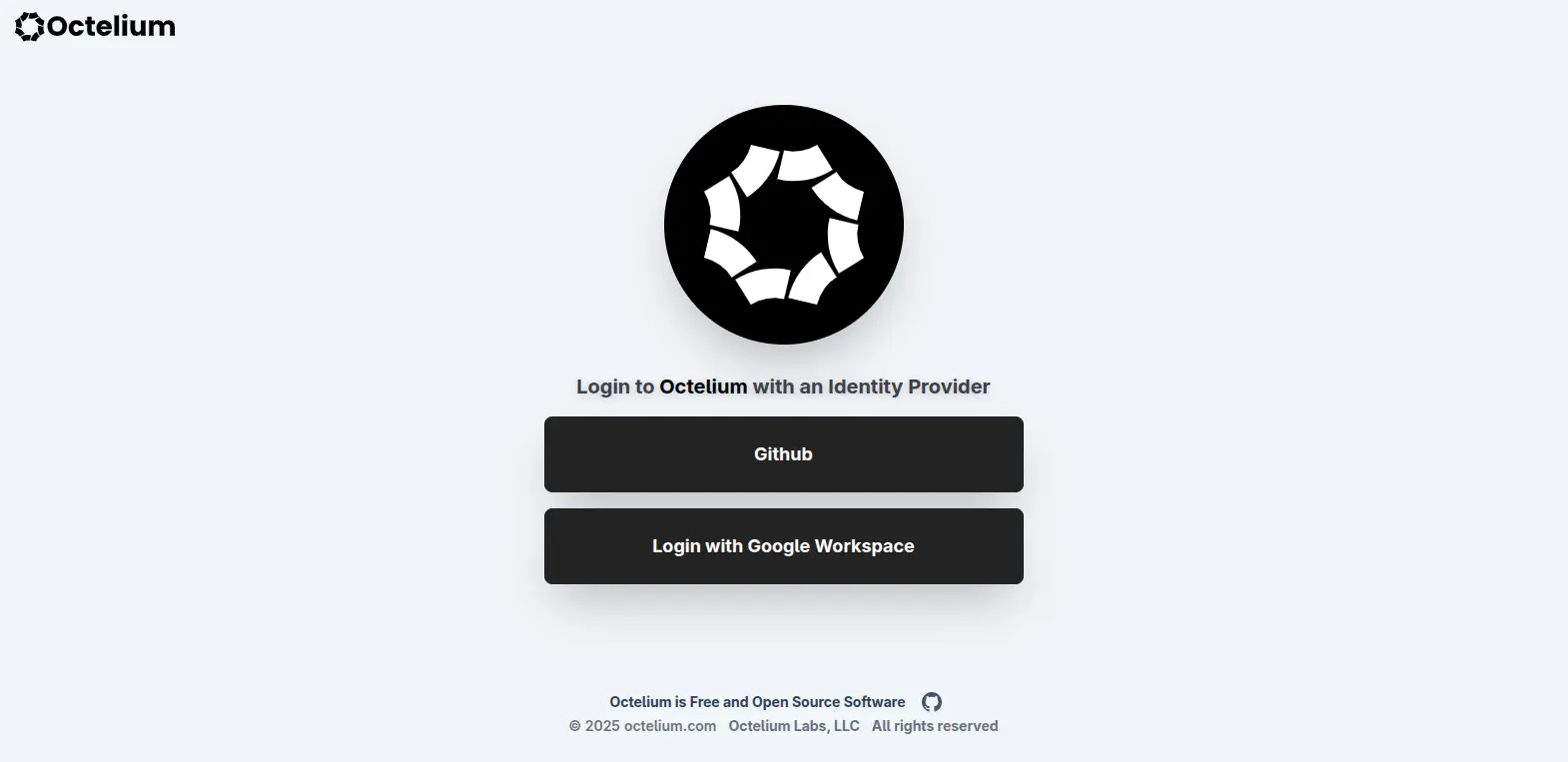
This will open a browser window for the User to authenticate themselves via the available identity providers defined by the Cluster. Once authenticated, the User can then interact with the Cluster via octelium or octeliumctl, connect to the Cluster and access its Services.
Passkey Login
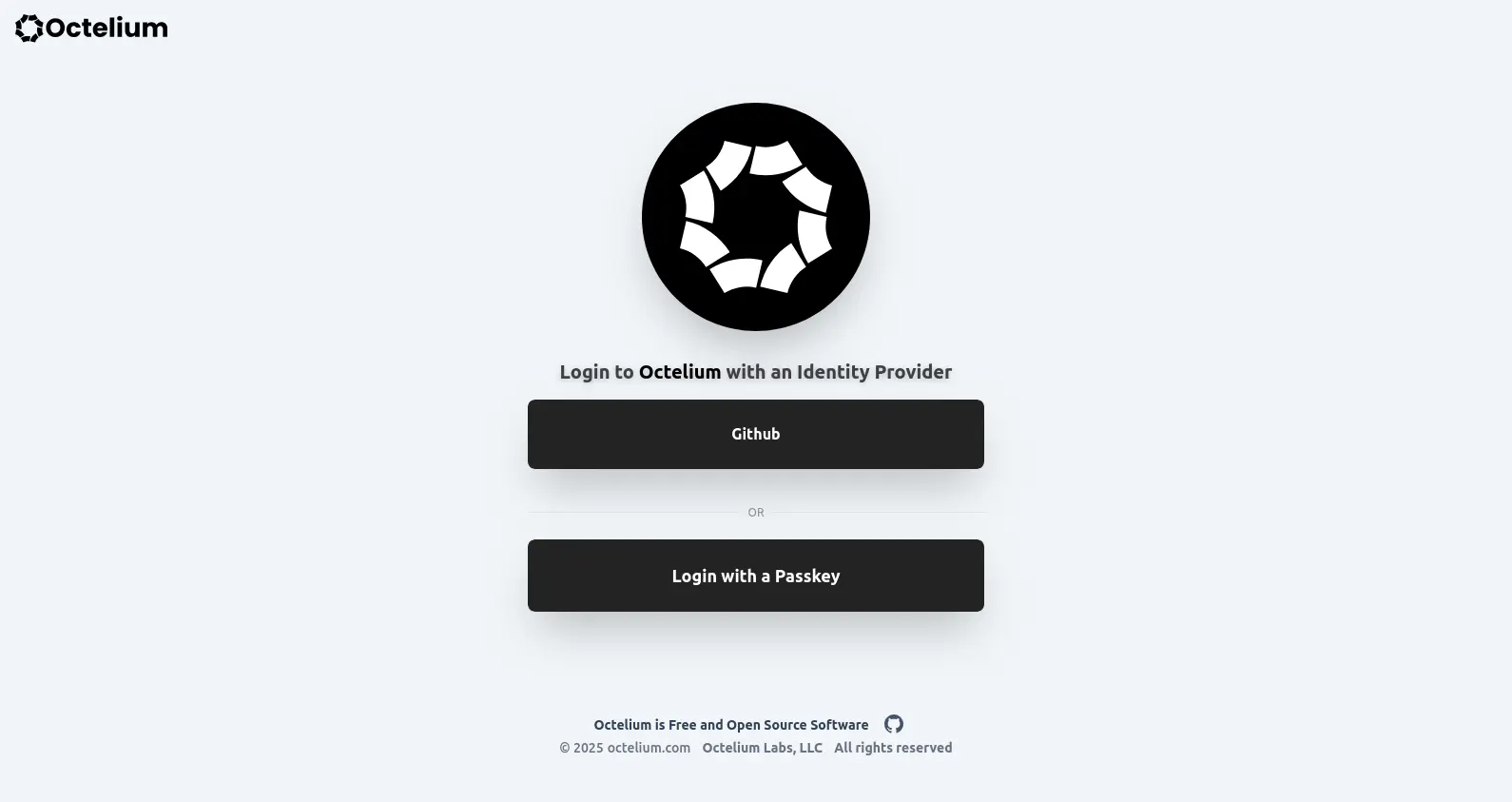
Once you're logged in, you can register an Authenticator, including a WebAuthn FIDO2 Passkey Authenticators such as Yubikeys and Google Password Manager. Once registered, you can use the Authenticator to login directly as shown below, if allowed by the Cluster (read more here).
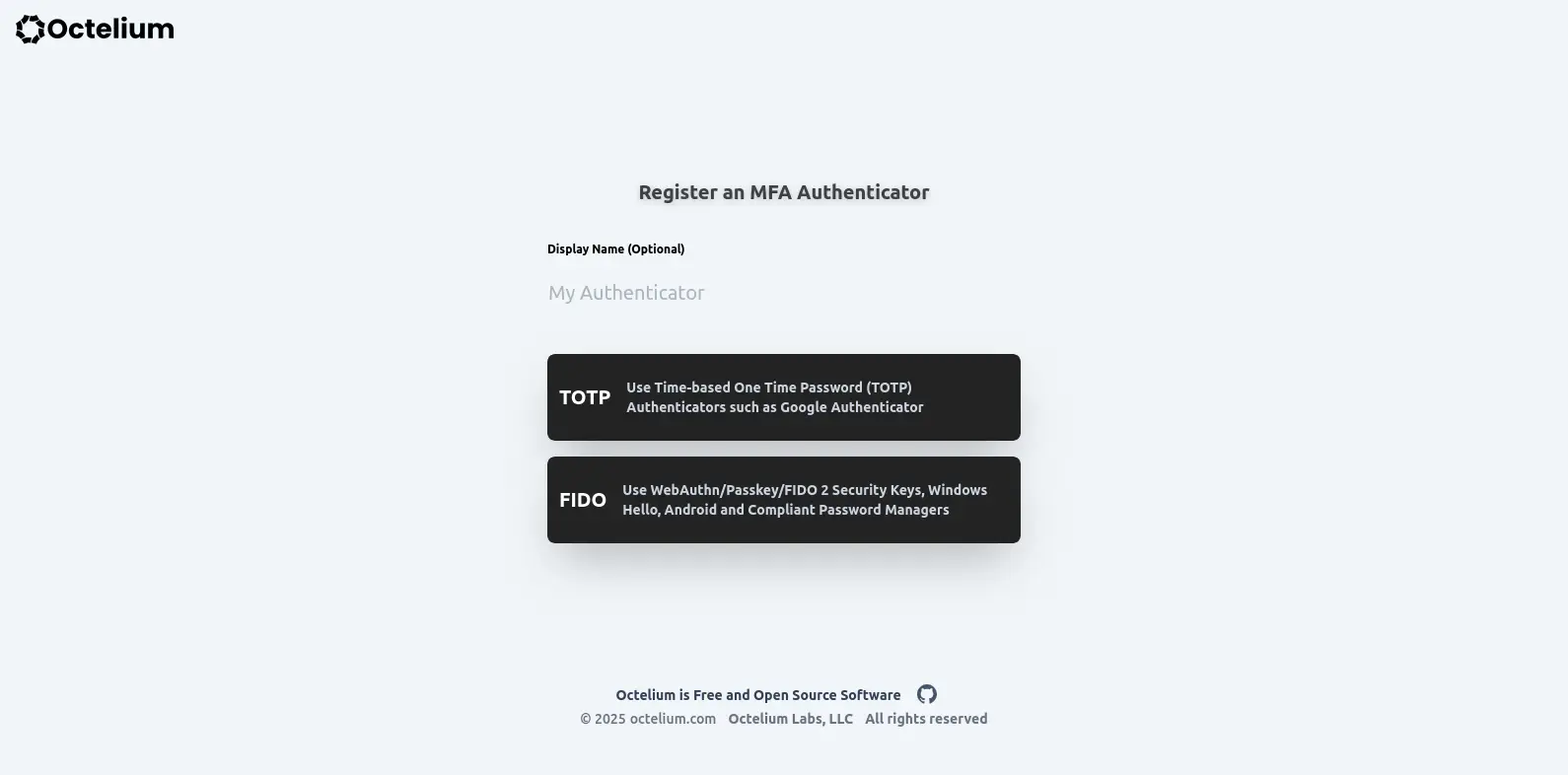
To register a TOTP or FIDO2 WebAuthn/Passkey Authenticator that can be used later for authentication, press on the "Authenticators" button in the left sidebar of the Portal, which is the Service you're redirected to by default once you're logged in.
Authentication Token
The second way for authenticating Users in order to obtain Sessions is via authentication tokens. You can use the Credential either using octelium login or octeliumctl login. You can also use the authentication token Credential to directly connect to the Cluster in a single step using the octelium connect command without having to use octelium login. This can be useful for running octelium inside containers or other programmable environments. Here are some examples:
You can also use the OCTELIUM_AUTH_TOKEN environment variable instead of having to use the --auth-token flag. This can be especially useful for containerized and cloud-based environments where you can store the authentication token as a secret that's exposed in runtime as an environment variable. It works simply as follows:
Access Token
You can also use an access token (read more here) directly in your octelium and octeliumctl commands without having to login/authenticate via the OCTELIUM_ACCESS_TOKEN environment variable as follows:
OIDC-based Assertion Authentication for Workloads
WORKLOAD Users can use OpenID Connect based assertion to authenticate to the Cluster in a "secretless" way without having to use an authentication token Credential.
As will be shown below, there are several supported ASSERTION_TYPE values, namely k8s or kubernetes for Kubernetes, azure for Azure services, github-actions for GitHub Actions and jwt for generic JWT assertions.
You can also use the OCTELIUM_AUTH_ASSERTION environment variable as a replacement for the --assertion flag as follows:
Kubernetes
The Kubernetes mode is designed for WORKLOAD Users running from within Kubernetes pods. It simply looks for the service account ID token stored in the /var/run/secrets/kubernetes.io/serviceaccount/token path and uses it as the assertion.
Azure
This mode works for WORKLOAD Users running on Azure services that support managed identity and can obtain an access token that is used as an assertion (read more here).
By default, the Cluster domain (e.g. example.com) is used as the audience. You can override the audience as follows:
GitHub Actions
This mode works for WORKLOAD Users running from within GitHub actions workflows (read more here).
By default, the Cluster domain (e.g. example.com) is used as the audience. You can override the audience as follows:
JWT
For other environments, you can directly use the issued JWT assertion that can be found in either a file path or an environment variable.
Here is an example for a JWT assertion that is stored in a file:
You can also use a JWT that is stored in an environment variable as follows:
Registering Device
You can register/enroll or re-register your Device via the octelium auth device register or simply octelium auth dev as follows:
Authenticators
Octelium currently supports a few types of Authenticator, namely FIDO for FIDO2-based Webauthn and Passkey, TOTP for Time-based one-time password authentication, and TPM for TPM 2.0-based authentication currently used in Linux and Windows clients.
You can list your Authenticators as follows:
You can create an Authenticator via the octelium auth create authenticator. You need to specify a type and optionally a display name for you to be able to easily recognize that Authenticator later.
Here is an example to create, and automatically register, a TPM 2.0 Authenticator:
You can authenticate with an Authenticator via its name. You typically want to use TPM-based authentication from within the octelium and octeliumctl clients since FIDO and TOTP are used via web browsers. Here is an example:
Once you authenticate with a certain TPM 2.0-based Authenticator, the Cluster will bind the Session authentication to that specific Authenticator till the Session expires. And the client will automatically re-authenticate itself via that specific Authenticator till the Session expires.
Logout from a Cluster
Logging out simply removes your Session both locally and at the Cluster side. Once you log out from a Cluster, you have to login again through one of the above methods in order to be able to interact with the Cluster again.